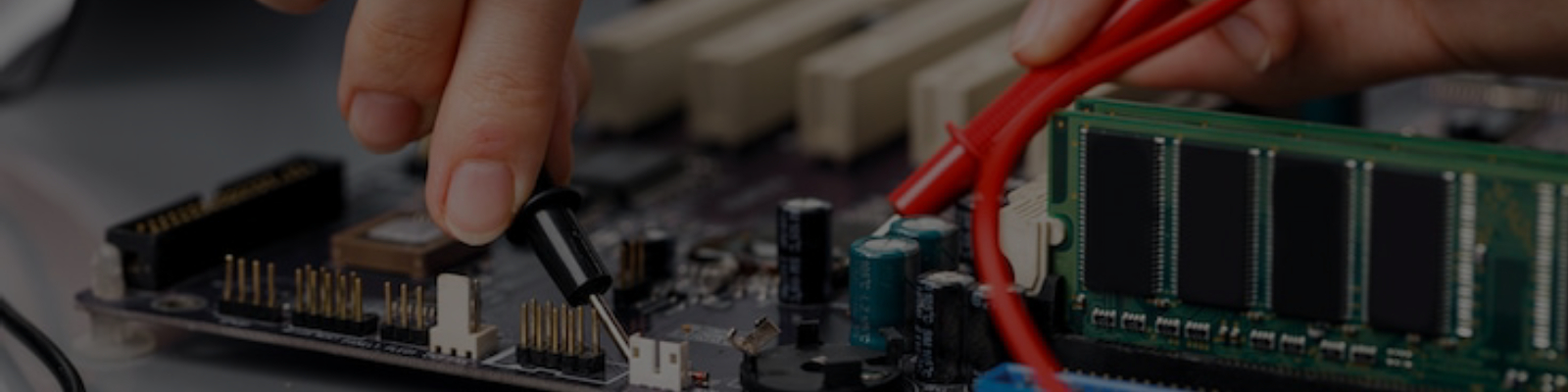
You may have seen a “BIOS update” available for your motherboard and wondered, “Should I install this?” Unlike a regular Windows update, a BIOS update changes the fundamental software that controls your hardware. It can add new features and improve stability, but the process itself carries a small but serious risk.
So, how do you know when it is actually necessary, and when it is better to leave it alone?
This guide will help you make a smart decision. We will cover the benefits, the risks, and give you a simple checklist to follow so you can know when a BIOS update is truly worth it.
First, what is a BIOS anyway?

You may have seen a “BIOS update” available for your motherboard and wondered, “Should I install this?” Unlike a regular Windows update, a BIOS update changes the fundamental software that controls your hardware. It can add new features and improve stability, but the process itself carries a small but serious risk.
So, how do you know when it is actually necessary, and when it is better to leave it alone?
This guide will help you make a smart decision. We will cover the benefits, the risks, and give you a simple checklist to follow so you can know when a BIOS update is truly worth it.
Good Reasons to Consider a BIOS Update
While it is not something you should do casually, there are a few very important situations where updating your BIOS is the right move.
To Make a New CPU Work
This is the most common and important reason to update your BIOS. If you are upgrading your computer with a processor that was released after your motherboard, you will almost certainly need to install a BIOS update for the motherboard to recognise the new CPU. You can check the motherboard manufacturer’s support page to see which BIOS version is required for the CPU you are choosing.
To Fix a Specific, Annoying Problem
To Patch a Major Security Threat
What Are the Risks of a BIOS Update?
There is a classic piece of advice among computer technicians when it comes to the BIOS: “if it is not broken, do not fix it.” This is because a BIOS update, while useful, carries a small but significant risk.
The main danger is that if the update process fails for any reason, it can corrupt the essential BIOS software. When this happens, the motherboard has no instructions on how to start up, and the computer will not be able to turn on at all. This is often referred to as “bricking” the motherboard, because it can be as useful as a brick. The most common causes of a failed update are a sudden power cut during the installation or accidentally using the wrong BIOS update file for your specific motherboard model.
When Should You Actually Update?
With the benefits and risks in mind, how do you decide what to do? Here is a simple checklist to help you make the right call.
YES, an Update is a Good Idea If…
- You are installing a new CPU: If your new processor is newer than your motherboard, an update is usually required to make it work.
- The update fixes a specific bug you have: If the release notes say the update fixes a crashing issue or a USB problem that you are currently struggling with, it is worth the risk.
- It patches a major security flaw: If there is news of a serious hardware vulnerability, updating is the smart choice to keep your data safe.
NO, It is Probably Better to Wait If...
- Your computer is working perfectly. If you have no stability issues, bugs, or crashes, there is rarely a need to take the risk.
- The update features do not apply to you. Often, updates are released to add support for a specific brand of RAM or a new accessory. If you do not own that hardware, you do not need the update.
How to Safely Update Your BIOS

If you have decided that an update is necessary, following the correct procedure is critical to avoid problems. While every manufacturer is slightly different, here is the safest general process to follow.
- Identify Your Motherboard: You need to know the exact model name of your motherboard. You can usually find this by searching for “System Information” in the Windows Start menu or by looking at the board itself.
- Download the Right File: Go to the official support page for your specific motherboard model on the manufacturer’s website (like Asus, MSI, Gigabyte, or Dell). Download the latest BIOS file.
- Read the Instructions: The download will usually include a text file or a manual. Read it carefully, as it may contain specific steps for your model.
- Use a USB Flash Drive: The safest method is to copy the BIOS file to a USB flash drive and use the update utility built directly into the BIOS menu itself (often called “Q-Flash,” “M-Flash,” or “EZ Flash”). This is much more reliable than running an update program inside Windows.
- Do Not Interrupt the Process: Once the update starts, do not turn off or restart your computer for any reason. Let it finish completely, even if it looks like it is stuck for a moment.
Feeling Unsure About the Process?
Updating your BIOS is a technical process that carries real risks. One small mistake or a sudden power outage can leave your computer unable to start. If you feel nervous about doing this yourself, that is completely normal.
You do not have to take that risk alone. The team at Computer Repair Adelaide performs these updates regularly. We can safely update your system to the latest version, ensuring your computer is stable, secure, and ready for new hardware without the worry.