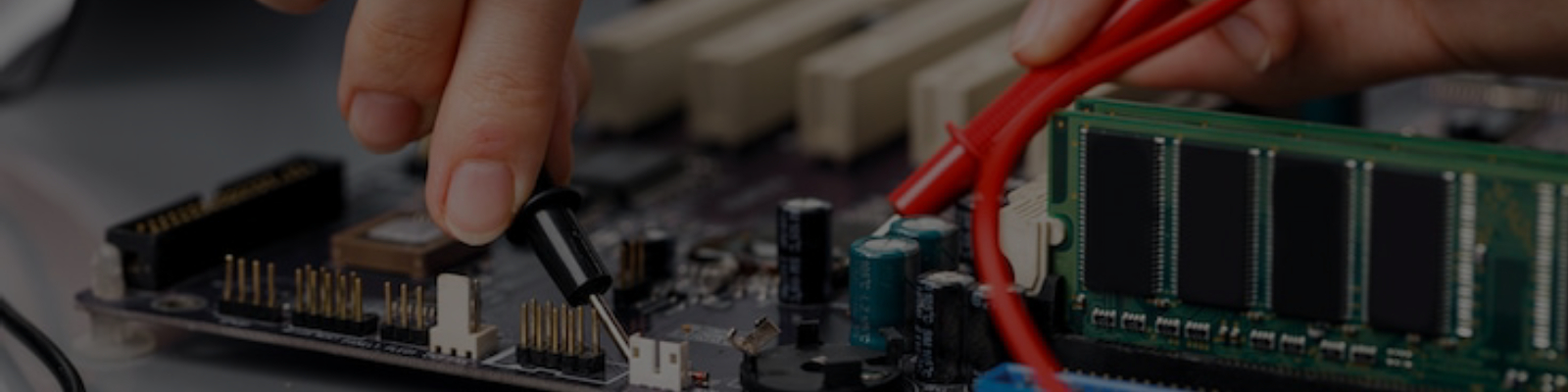
Your computer suddenly won’t start. Or maybe it’s giving you strange beeps and crashes. Often, the problem is your computer’s memory – the RAM.
Here at Computer Repair Adelaide, we’ll show you how to spot a RAM issue. We will then guide you through “reseating” your memory. It’s a common, surprisingly simple fix that can save you a trip to the shop.
Don’t worry, we’ll explain it all clearly.
Is Your RAM the Problem? Look for These Signs
When your computer isn’t working right, you need to be a detective. Your PC often gives clues that point directly to a RAM issue. Here are the most common signs we look for in our repair shop.
Blank Screen
Your computer turns on, you hear the fans spin, and maybe lights come on, but nothing shows on your monitor. The screen stays completely black. This is a very common sign of a RAM problem.
Strange Beep Codes
When your computer first turns on, it performs a quick health check. If it finds a problem, especially with RAM, it might make a series of short or long beeps. These “beep codes” are like Morse code; they tell you exactly what kind of issue it has found. Different patterns usually point to memory issues.
Blue Screen Errors (BSOD)
If Windows manages to start, but then crashes suddenly with a blue screen, this is also a strong indicator of RAM trouble. These blue screens often show specific error messages like “Memory Management” or “PAGE_FAULT_IN_NONPAGED_AREA,” which directly point to memory errors.
Random Crashes or Freezes
Your computer might work fine for a while, but then it freezes without warning or unexpectedly reboots itself during normal tasks. These unpredictable crashes can also be a sign that your RAM is failing or not communicating correctly with the rest of your system
What is "Reseating RAM"? (And Why It Helps)
You might hear a technician talk about “reseating the RAM” and wonder what that actually means. It is a very simple process.
Reseating RAM means taking your computer’s memory sticks out of their slots and then putting them back in firmly.
This simple action often fixes many common RAM problems. Over time, dust can build up on the electrical contacts of the RAM stick or inside the memory slot itself. Or, the RAM stick might just loosen slightly from everyday vibrations, heat changes inside your PC, or even if the computer gets bumped.
By reseating the RAM, you effectively clean the electrical contacts. This ensures there is a fresh, firm, and reliable connection between the memory stick and the motherboard. It is often the quickest fix for a computer that suddenly won’t start.
Before You Reseat RAM: Safety First!
Before you open your computer, even for a simple task like reseating RAM, you must follow some important safety steps. This will protect both you and your computer’s delicate components.
Turn Off and Unplug Your PC
Always completely shut down your computer and then unplug it from the wall socket. Do not just put it to sleep. You must cut the power entirely.
Discharge Static Electricity
Static electricity from your body can damage sensitive computer parts like RAM. Before you touch anything inside your PC, simply touch a bare metal part of your computer’s case (like the unpainted frame). This releases any static charge from your body.
Be Gentle
Computer components are delicate. The clips that hold the RAM in place can break if too much force is used. Always handle RAM sticks by their edges and avoid touching the gold connectors or the chips themselves.
Step-by-Step: How to Reseat RAM
Once you have followed the safety steps, you are ready to reseat your RAM. The process is slightly different depending on if you have a desktop PC or a laptop.
For Desktop PCs


- Open the case: Carefully remove the side panel of your desktop computer.
- Locate the RAM: Look for the long, thin sticks of memory plugged into slots next to the large CPU fan (if visible) or under it.
- Release and remove: At each end of the RAM stick, you will see a small plastic clip. Gently push these clips outwards (away from the RAM stick) to release it. The RAM stick should then spring up slightly. You can now carefully pull it straight out of its slot.
- Clean (optional): Lightly blow some compressed air into the empty RAM slot to clear any dust that might be inside. Avoid touching the pins.
- Reinsert firmly: Align the notch on the RAM stick with the notch in the slot. Push the RAM stick straight down firmly with even pressure from both thumbs until the clips on both ends snap back into place. You should hear a click.
- Test one by one: If you have multiple RAM sticks and your computer still does not start, try testing them one by one. Reinsert just one stick, then try to boot. If that works, add another and test again.
For Laptops


Reseating RAM in a laptop is often more difficult, as memory is sometimes soldered down. If your laptop’s RAM is upgradeable:
- Access the panel: Turn your laptop over and remove the battery if it is external. Then, carefully unscrew the access panel on the bottom. Not all laptops have easy access to RAM.
- Locate and remove: Find the RAM sticks. They usually have small metal clips holding them down. Gently push the clips outwards to release the stick, and it will spring up.
- Reinsert: Gently push the stick back into the slot at an angle, then push it down firmly until the clips snap into place.
- Reassemble: Replace the access panel, reinsert the battery, and then test your laptop.
What If Reseating Doesn't Work? (Next Steps)
If you have reseated your RAM and your computer is still giving you trouble, don’t worry. This simply means we need to dig a little deeper.
Test One RAM Stick at a Time
If your computer has more than one RAM stick, this is your next step.
- Remove all but one RAM stick.
- Try to boot your computer. If it starts, then that stick and slot are likely working.
- Repeat this process for each individual RAM stick. If your computer only starts with certain sticks, then you have found the faulty one.
Try Different RAM Slots
Sometimes, it is not the RAM stick itself, but the memory slot on the motherboard that is faulty.
- Take a known good RAM stick and try it in each different memory slot on your motherboard.
- If the computer only starts with the RAM in certain slots, then one of your motherboard’s slots might be bad.
Run a Memory Diagnostic
Windows has a built-in tool to test your RAM more thoroughly.
- Go to your Windows search bar and type “Windows Memory Diagnostic”.
- Choose to “Restart now and check for problems”. Your computer will reboot and run a series of tests on your RAM. This can take some time.
- When Windows starts again, it will tell you if any problems were found with your memory.
Our Final Advice
Reseating RAM is a simple yet powerful fix for many common computer startup issues. It’s a key troubleshooting step that you can often do yourself.
However, sometimes the problem goes deeper than a loose connection. Diagnosing and replacing faulty RAM or a motherboard can be complex, and not everyone is comfortable opening their computer.
If your computer is still struggling, or you’re simply not comfortable performing these steps, Computer Repair Adelaide is here to help. Give us a call today for a professional diagnosis and a reliable repair solution.